Collaborative Git (PartI)
In this part, we will imagine that you work with a colleague.
Create branch (for experiment or debugging)
Let’s imagine that we want to experiment some pre-processing, a new model, to debug some specific parts. If you do that directly on the branch “main” and send it to the repo, it will suppress what your colleague have done before (its new work). Therefore, we create a (parallel) branch:
$ git branch preprocess_testTo move on this branch:
$ git checkout preprocess_testIt is possible to do the two things at the same time:
$ git checkout -b preprocess_testLet’s add a new file to this branch:
$ echo "label encoder" >> preprocessing_test.pyLet’s add it to the index and commit:
$ git add preprocessing_test.py
$ git commit -m "experimental step of preprocessing"
You can see that the file appears on the branch “preprocessing_test” but not on main. This is due to the fact, you have commited the new file on the “preprocessing_test” branch. Then try to push the modification: it does not work. Let’s explain why. Briefly, the “main” branch has the “origin/main” has a remote associated branch but not the branch “preprocess_test”. So you have to write:
$ git push --set-upstream origin preprocess_testYou can configure the repo to associate a similar remote branch to each branch by typing:
git config --add --bool push.autoSetupRemote truePull Request
Let’s say you are satisfied from your work and you want to integrate your new functionality. But you need a feedback/checking of one of your colleague. This is the object of a pull request (PR).
On Github, click on Pull Request -> New pull request. After comparing the new branch the main one, create pull request. On this page, you find:
- a box to enter a comment on your PR: say why you have written this code.
- a list of commits
- the number of files that have been added, modified or deleted.
At this stage, one of your colleague has to checked your work and merge it, that is to say, integrate the last changes to the main branch. How to do this:
- online by clicking on “Merge pull request”
- locally once main is updated:
git merge preprocess_testIn practice, git merge creates a commit whose the parents are the last commit of “main” and “preprocess_test”.
If you return to the main page on Github, you can see that:
- the last commit is the merge one
- the file “preprocessing_test.py” is now on the main branch.
Finally, you can retrieve the last changes as well as your colleague with git pull.
Ressource: Tutorial on branch and tag
Philosophy of commit: commit early, commit often
Imagine you want to integrate a new file of data to your project or a model that takes different kind of inputs. This may impact the exploration of your data, the clearning, the development of the statistical algorithms, etc.
One may do all these changes and commit, push the code. But your poor colleague will receive a lot of lines of code and try to understand and check them. The modifications that he/she will see do not appear clearly in a logical order:
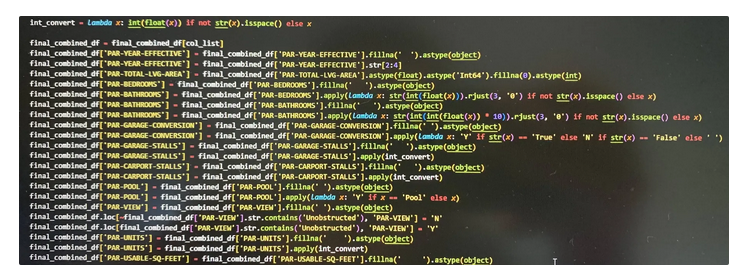
Instead of this, prefer to commit each functionality. The central question is: does each of your commit have one special purpose?
Until now, we have presented a simple scenario where you are the only collaborator to do modifications. Let’s present the real scenario where one collaborator has also modified the code, in the next part.